
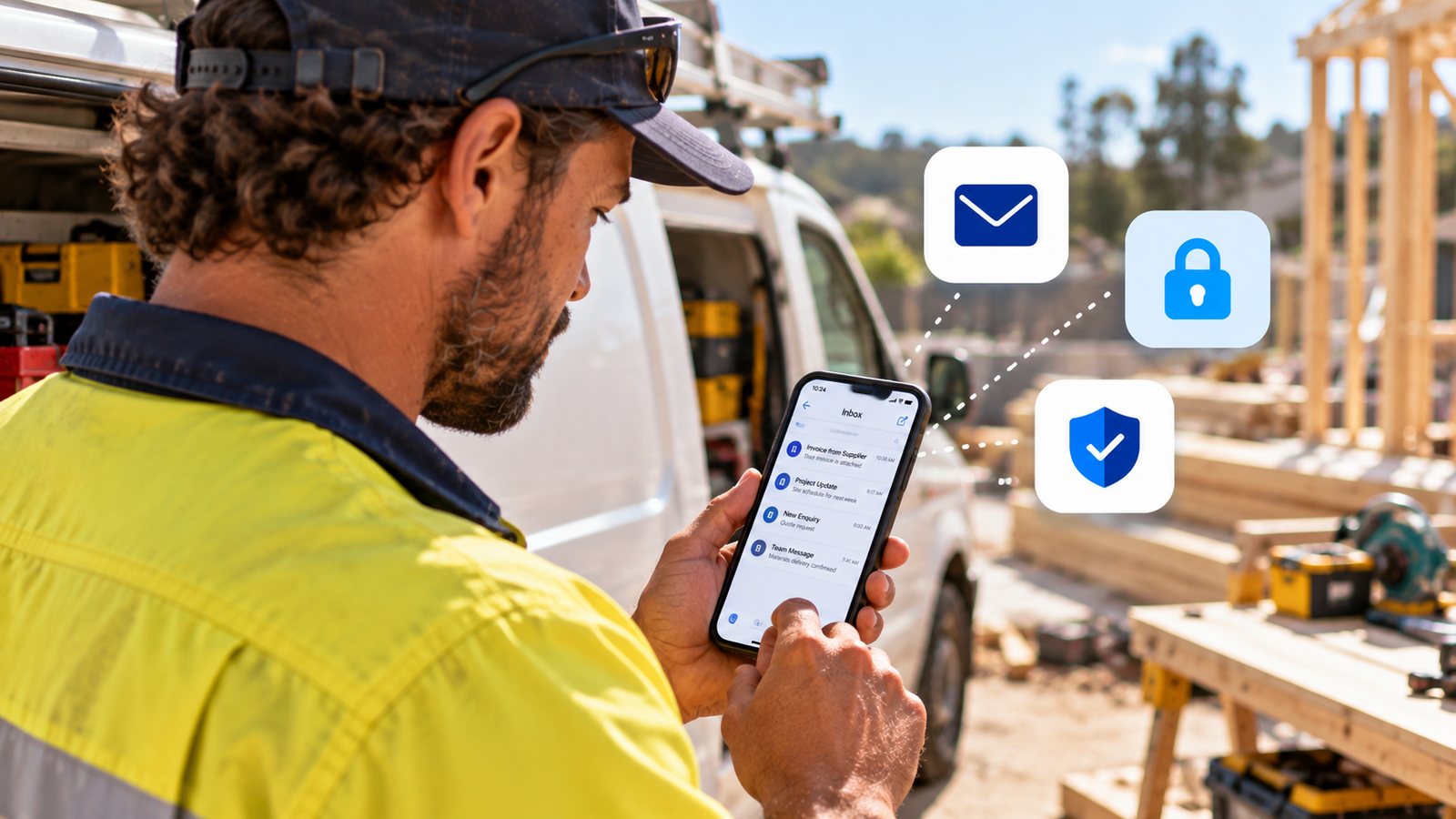
For a crew that's rarely at a desk, the phone isn't a backup way to check email — it's the main one. Business email built for mobile use should mean full functionality, not a stripped-down version: sending and receiving properly, a shared calendar, and the same inbox everyone else on the team sees. Done right, nobody on a job site needs to wait until they're back at the ute, let alone the office, to read a quote request or confirm a booking.
This guide covers what to actually set up, how the main ways of reading business email on a phone compare, what "mobile device management" means in plain English, and the one habit that matters more than any app you choose.
What to Actually Set Up
- The official mail app for your provider, rather than relying on a browser — it's built for the smaller screen and works properly offline
- A lock screen on the phone itself — the single most important habit, since it's the first line of protection if the phone is ever lost
- Notifications turned on deliberately — for new mail, calendar reminders and anything urgent, so nothing important gets missed between jobs
- Confirming remote sign-out is available — so access to the account can be cut off from a specific phone without needing the device back
Comparing the Ways You Can Read Business Email on a Phone
There are three realistic options for reading Microsoft 365 business email on a phone, and they're not equivalent — the one you pick affects what breaks, what's protected, and what you can do if a phone goes missing.
The Outlook mobile app, Microsoft's own app, is the one built specifically for Microsoft 365. It supports shared mailboxes and delegate access — useful the moment more than one person needs to see the same inbox, like a general enquiries address — and it's the client Microsoft keeps actively developing new features for. Its main trade-off is that it integrates a little less neatly with a phone's native contacts app than a built-in mail app does, since it's a separate app layered on top of the operating system.
Your phone's built-in Mail app (iOS Mail or the Android native mail app), connected via a standard protocol called Exchange ActiveSync, is familiar, efficient, and handles the basics — mail, calendar, contacts — well, even on a patchy mobile connection. Its main limitation is feature depth: it doesn't support shared or group mailboxes or delegate access, and it can't properly read messages that have encryption or sensitivity labels applied, which matters more as a business grows than it does on day one.
Checking email through a mobile browser works in a pinch but isn't built for how a phone is actually used — no offline access, no push notifications in most cases, and a fiddlier interface on a small screen. It's worth knowing it exists as a fallback (if a phone is ever replaced and nothing's set up yet), but it shouldn't be the everyday way a crew reads business email.
For most small teams, the Outlook app is the better default — broader features, active development, and better alignment with the security controls covered next — with the built-in Mail app as a perfectly reasonable alternative for anyone who strongly prefers it.
What "Mobile Device Management" Actually Means (and Why It's Already Switched On)
"Mobile device management," or MDM, sounds like something only a business with an IT department would need. In practice, it's a simpler idea: a way to make sure a phone meets some basic security requirements before it's allowed to touch business email, and a way to cut that phone off if it's ever lost, stolen, or handed back by someone who's left.
Microsoft 365 includes a basic version of this — called Basic Mobility and Security — at no extra cost on standard business plans. Without any extra software to buy or install, it can:
- Require a lock screen PIN or password before a phone can access business email, with rules on minimum length and what happens after too many failed attempts
- Block jailbroken or rooted phones automatically, since these have had their built-in security protections deliberately removed
- Wipe just the business data, or the whole device, remotely — useful for a phone that's lost or stolen, or for cutting off access cleanly when someone leaves the crew
- Block access on any phone that doesn't meet these basic rules, prompting the user to fix the issue (like adding a lock screen) before they can get back in
This is different from — and simpler than — full device management platforms like Microsoft Intune, which add things like remote-locating a phone, managing which apps are installed, and Wi-Fi/VPN configuration. Most small crews don't need that level of control; the basic protections above cover the realistic risks (a lost phone, an ex-employee's phone, a phone with no lock screen at all) without adding anything to manage.
Why the Lock Screen Habit Matters More Than People Think
A stolen or lost phone is one of the most common ways a business email account ends up exposed — not because of a sophisticated hack, but because the phone itself had no lock screen and the mail app was already signed in. It's a five-second setting that closes off one of the easiest ways in, and it's also what makes a remote wipe meaningful — remote wipe cuts off future access, but a lock screen buys the time needed to act before anyone gets into what's already on the phone.
Using a Personal Phone for Business Email
For a small crew, buying a separate phone for work isn't usually realistic — business email ends up on the same phone as everything else. That's a normal, workable setup, as long as a few things are true:
- The phone has a lock screen — covered above, and worth repeating because it's the single biggest factor in whether a lost phone is actually a problem
- Business data can be wiped without wiping personal photos and messages — this is exactly what the "retire" option in Basic Mobility and Security does: business mail, contacts, and calendar are removed; everything personal on the phone stays untouched
- The business has a way to ask for that wipe — in practice, a quick message to whoever manages the account, the moment a phone goes missing or someone leaves, rather than hoping it gets sorted out later
- Public Wi-Fi is used with the same caution as any other sensitive account — business email, like online banking, is safer on mobile data or a trusted network than on an open café hotspot
None of this requires a formal IT policy document for a crew of a few people. It just means the basics above are actually switched on, rather than assumed.
What Actually Works Well on Mobile
Modern business email apps handle far more than sending and receiving: shared team calendars, group mailboxes, file attachments straight from cloud storage, and read receipts all work the same way they do on a desktop. Calendar invites sync properly, including for video meetings, and a change one person makes to a shared calendar shows up for everyone else immediately. For a crew working across sites, vehicles or job sites, that means genuinely not needing a laptop just to stay on top of email, bookings, or who's where.
Common Questions
Is it safe to check business email on a personal phone? Yes, as long as the phone has a lock screen and the business can remotely sign it out or wipe just the business data if it's ever lost, stolen, or handed back by someone who's left — both of which are standard, built-in Microsoft 365 features, not something extra to buy.
Do I need to buy mobile device management software separately? No — Microsoft 365's standard business plans already include a basic version (Basic Mobility and Security) that handles the realistic risks for a small crew: lock screen enforcement, blocking unsecured phones, and remote wipe. More advanced device management exists for larger IT setups, but it isn't needed here.
Should I use the Outlook app or my phone's built-in Mail app? Both work. The Outlook app supports more business features — shared mailboxes and delegate access in particular — and is Microsoft's actively developed option, which makes it the better default. The built-in Mail app is a reasonable alternative for anyone who prefers it, with the trade-off of fewer business-specific features.
What happens to business email if a phone is lost or stolen? If Basic Mobility and Security (or an equivalent) is set up, business mail, contacts, and calendar data can be wiped from that specific phone remotely, without needing the phone back. Everything personal on the device — photos, messages, other apps — is unaffected if the "retire" option is used rather than a full factory reset.
Can I cut off a former employee's phone from company email? Yes — the same remote wipe/retire option used for a lost phone works just as well for an employee who's left, removing business email access from their device without needing to physically collect or reset the phone.
Will this setup slow down my phone or use a lot of data? No noticeably so. The Outlook app and built-in Mail app are both designed to run efficiently in the background, and a basic device-security policy (PIN requirement, jailbreak detection) runs quietly without any ongoing data use of its own.
Do notifications work properly for business email on mobile? Yes, when set up properly — push notifications for new mail, meeting reminders and calendar changes all work the same way on mobile as on a desktop.
Where to Next
Once email is genuinely working from the phone, the next practical question for a growing crew is how quickly staff can be added or removed — especially when someone's only around for a season or a single job. If setting any of this up yourself feels like one more job on the list, SafeSMB can walk you through the whole process — mail app, lock screen, device protection and all — so it's done properly once and then forgotten about.